Get the most out of ManiShelf.
Quick visual guides to every corner of the app.
01
Essentials
01 - Getting started
Add any title in seconds.
- Search by name: Click the + button or use the menu bar search. Select the item type, type a title name, and pick from the results.
- Paste a link: Copy a URL from Crunchyroll, Tapas, Webtoons, or any reading site. Paste it into the menu bar search.
- Import from MAL or AniList: Go to Settings > Data & Backup > Import from Service.
▶
02 - Stay updated
Never miss a new release.
- Anime: Exact airing dates are fetched from AniList. You'll get a notification when a new episode airs.
- Manga & Manhwa: Release dates are predicted based on historical patterns. You can edit the release schedule manually.
- Open the Release Calendar from the toolbar to see all upcoming releases.
▶
03 - Organization
Organize your library.
- Tags: Add tags from the detail panel and use them to filter your library.
- Custom lists: Create lists like "Favorites" or "To Recommend" from the sidebar.
- Groups: Group related titles together (e.g., seasons of an anime).
- Drag and drop: Drag titles to set a quick bookmark.
▶
04 - Explore
Discover what to read next.
Get personalized recommendations powered by AniList. ManiShelf analyzes your library and shows what fans of similar titles also enjoy. The more you add, the better the suggestions get.
▶
05 - Insights
Track your progress at a glance.
View library stats, score distributions, completion rates, and a release calendar all in one view. See how your watching and reading habits break down across types and statuses.
▶
02
More tips
06 - Privacy
NSFW mode, when you need it.
- Go to Settings > General > NSFW Tags to select which tags to hide.
- Toggle NSFW mode on/off using the eye icon in the toolbar.
- You can also enable it automatically at app launch.
▶
07 - Data
Back up your library safely.
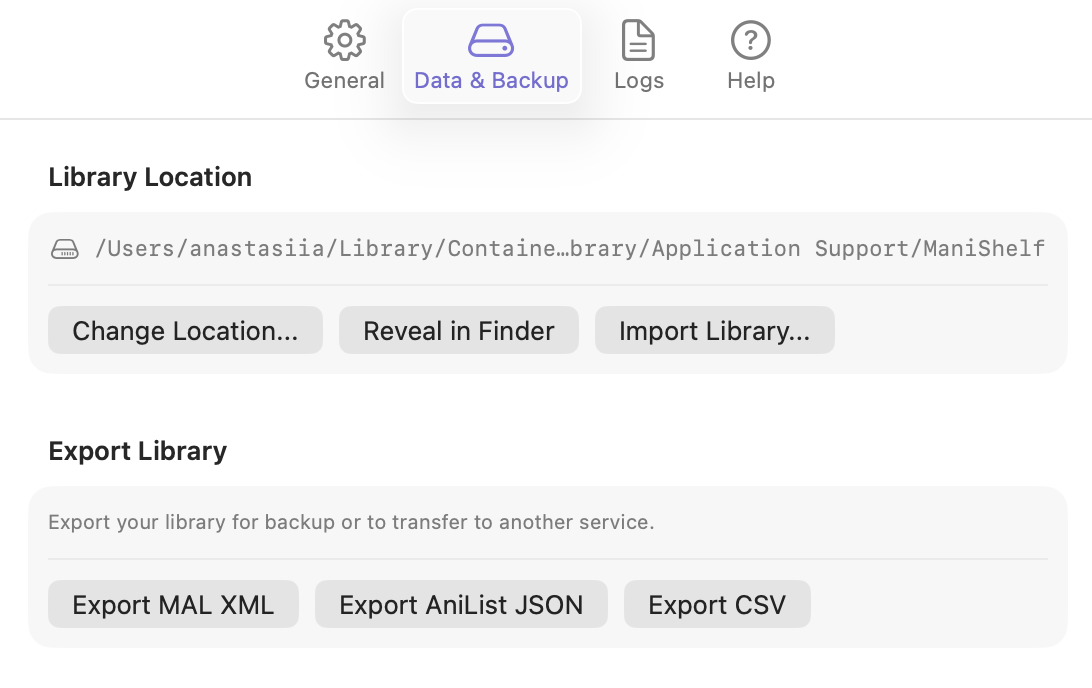
- Find your library file via Settings > Data & Backup > Reveal in Finder.
- Copy
library.dbto a safe location or iCloud Drive. - Restore with the Import Library button. Export as CSV, MAL XML, or AniList JSON.
08 - Customization
Replace cover images.
- Click the image icon on a cover to replace it with any image from your Mac.
- Use the refresh button to re-fetch metadata and covers from external services.
▶
09 - Quick access
Menu bar for speed.
- Search for titles or paste links to add them quickly.
- View recent release notifications.
- Open the calendar, settings, or main window.
▶
10 - Sources
Follow reading & watching links.
- Official publication sources are fetched automatically.
- Add custom links for any title.
- Choose which links show in Notification Center when new releases are announced.
- Open websites in the native app browser or your default browser.
▶